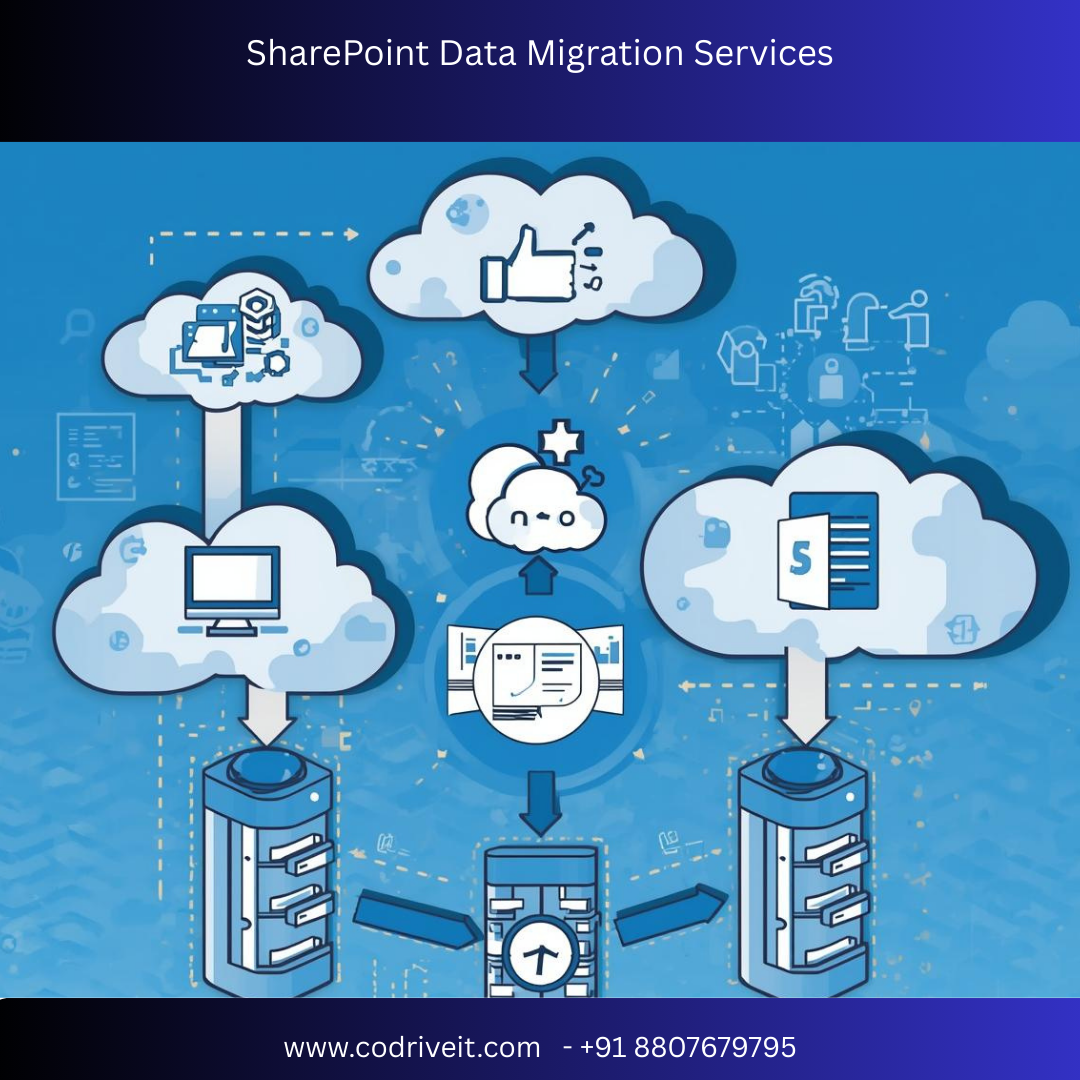

In today’s digital workplace, organizations rely on centralized platforms to store, manage, and collaborate on documents and business data. SharePoint Data Migration Services help businesses transfer documents, files, lists, workflows, and other data from legacy systems or older platforms into modern SharePoint environments. A well-planned migration ensures that organizations can improve collaboration, maintain data security, and enhance productivity.
Modern SharePoint environments provided by Microsoft—such as Microsoft SharePoint and SharePoint Online—offer powerful document management, workflow automation, and enterprise collaboration capabilities.
This guide explains everything you need to know about SharePoint data migration, including benefits, challenges, migration processes, and best practices.
SharePoint Data Migration is the process of transferring documents, folders, lists, libraries, metadata, and permissions from legacy platforms, file servers, or older SharePoint versions to a modern SharePoint environment.
Organizations often migrate data to:
Improve collaboration
Enable cloud-based document access
Centralize document management
Enhance data security and compliance
Migration may involve transferring data from sources such as:
File servers
Legacy document management systems
Older SharePoint versions
Cloud storage platforms
SharePoint has become one of the most widely used enterprise collaboration platforms because of its advanced document management capabilities.
SharePoint allows organizations to store all documents in a centralized platform where employees can easily access and collaborate on files.
Teams can share documents, manage projects, and collaborate in real time using SharePoint workspaces.
With SharePoint Online, employees can access documents from anywhere using secure cloud-based infrastructure.
SharePoint includes enterprise-level security features such as:
Role-based access control
Data encryption
Compliance management
Audit logs
SharePoint data migration typically involves transferring multiple types of organizational content.
Common file formats such as:
Word documents
Excel spreadsheets
PowerPoint presentations
PDFs
Images and media files
Document libraries store structured collections of files along with metadata for easier search and management.
SharePoint lists store structured data such as:
Task lists
Project data
Inventory records
Business process information
User permissions and access controls must be preserved during migration to ensure proper data security.
Existing workflows and automated processes may also need to be migrated or recreated in the new SharePoint environment.
Despite its benefits, SharePoint migration can present several challenges.
Organizations often have massive file repositories that require careful migration planning.
Maintaining metadata and document relationships during migration can be complex.
Incorrect migration of permissions may cause security issues or restrict user access.
Poor migration planning may disrupt business operations and document access.
A structured migration strategy ensures accurate data transfer and minimal disruption.
The migration process begins with evaluating the existing data environment.
Key tasks include:
Identifying data sources
Analyzing data volume
Reviewing file structures
Understanding permission settings
This helps create a clear migration roadmap.
Before migration, organizations should clean their data by:
Removing duplicate files
Deleting outdated documents
Organizing file structures
Standardizing naming conventions
This step reduces clutter in the new SharePoint environment.
Data mapping ensures that files, folders, metadata, and permissions from the source system match the structure of the new SharePoint environment.
For example:
| Source System | SharePoint Destination |
|---|---|
| File Folder | Document Library |
| Metadata Field | SharePoint Metadata |
| User Permissions | SharePoint Access Roles |
Data can be migrated using various methods, including:
SharePoint migration tools
ETL migration platforms
API-based migration scripts
Third-party migration software
Automated migration tools help reduce manual errors and improve efficiency.
After migration, data must be validated to ensure:
All documents are transferred
Metadata is preserved
Permissions are correct
Workflows function properly
Testing helps identify and resolve any issues before full deployment.
Once the migration is validated, the new SharePoint system is launched.
Organizations should monitor system performance and user activity to ensure smooth operation.
To achieve successful migration results, organizations should follow proven best practices.
Always maintain secure backups of all data before migration begins.
Large migrations should be executed in stages to reduce risks and downtime.
Automated migration tools help maintain accuracy and speed.
Ensure that access permissions and security policies are properly configured.
Provide training to employees so they can effectively use the new SharePoint environment.
When implemented successfully, SharePoint migration provides several benefits.
Teams can collaborate on documents in real time using shared workspaces.
Advanced search capabilities allow users to quickly locate files using metadata and filters.
SharePoint provides enterprise-grade security features and compliance tools.
Organizations can easily scale their document storage and collaboration capabilities.
SharePoint Data Migration Services play a vital role in helping organizations modernize their document management systems and improve collaboration across teams. By following structured migration processes, performing proper data cleansing, and implementing strong security measures, businesses can ensure a smooth and secure migration to modern SharePoint platforms.
A successful SharePoint migration not only improves document management efficiency but also enhances productivity, data accessibility, and organizational collaboration.
Organizations that leverage professional SharePoint data migration services can minimize risks, reduce downtime, and fully unlock the capabilities of modern SharePoint environments.